How to block websites on a Mac, with breaks that end on time
Last updated
By Vitalii Kizlov, who makes Cloister.
A planned break helps only while it stays the length you planned. A timer can tell you a break is over, but it can’t close the tab you opened. With Cloister, the sites on your list open when a break starts and are blocked again when it ends, on their own, and nothing in the app moves a break or makes it longer. Here is how to set that up for a session you start yourself, and for one that starts on a schedule.
Choose a rhythm
- 25 + 5: a 5-minute break every 25 minutes. It needs a session of at least 35 minutes.
- 50 + 10: a 10-minute break every 50 minutes. It needs at least 70.
Breaks are inside the session’s length, never added to it: two hours with breaks still ends two hours after you start. A session never ends on a break, because the last one is followed by at least as much blocked time as it lasted. Every break in a session is the same length. For a few lengths, that gives:
| Session | 25 + 5 | 50 + 10 |
|---|---|---|
| 1 hour | 1, at 0:25 | Doesn’t fit |
| 1½ hours | 2, at 0:25 and 0:55 | 1, at 0:50 |
| 2 hours | 3, at 0:25, 0:55 and 1:25 | 1, at 0:50 |
| 3 hours | 5, every half hour from 0:25 to 2:25 | 2, at 0:50 and 1:50 |
| 4 hours | 7, every half hour from 0:25 to 3:25 | 3, at 0:50, 1:50 and 2:50 |
Times are from the start of the session. 15 and 30 minutes are too short for either, and other lengths, up to 24 hours, follow the same rule.
Start a session with breaks
Not on your Mac yet? Download Cloister first: the 14-day trial has nothing withheld.
- Choose what to block, and for how long. Click Cloister in the menu bar, click the lists you want, and pick a length. The lengths run from 15 minutes to 4 hours, and Change… sets any other.
- Choose the breaks. Under the lengths, click 25 + 5 or 50 + 10. The line under them counts the breaks, such as “A 5‑minute break every 25 minutes · 3 breaks”. A choice that doesn’t fit the length is greyed out.
- Read the question, then commit. Press Start session. The question names the breaks, such as “Block 21 sites for 2 hours, with three 5‑minute breaks, the first around 9:25?”, and adds: “The breaks happen on their own, and can’t be moved or skipped.” Press Start blocking.
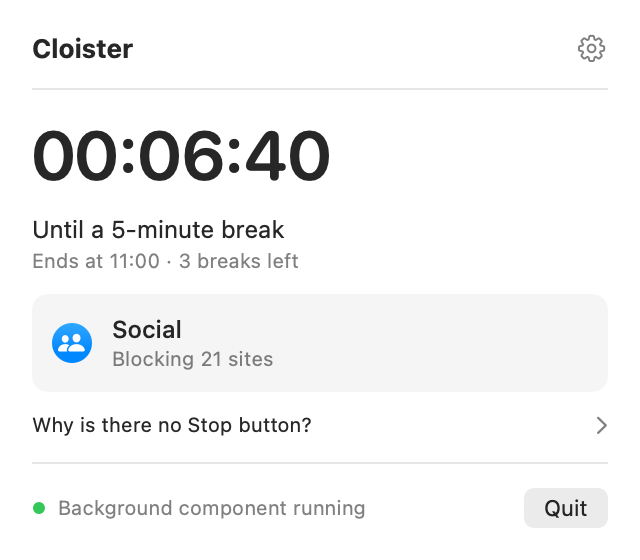
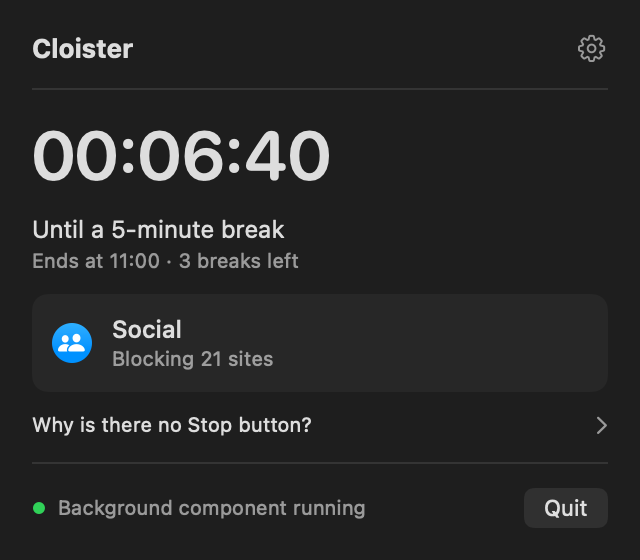
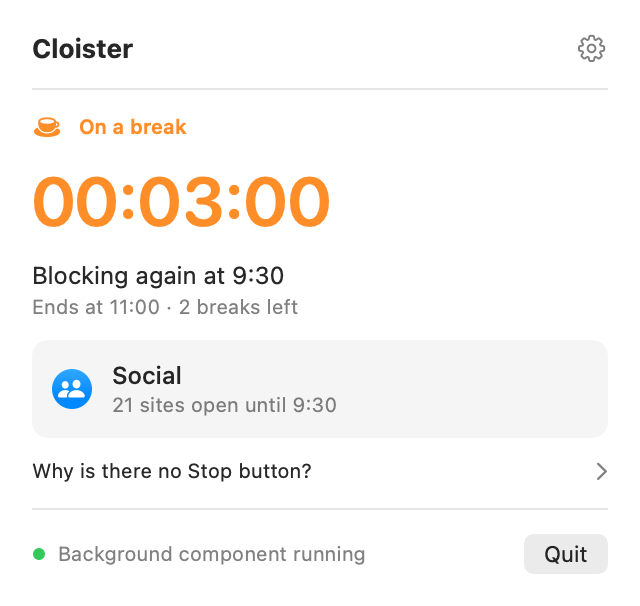
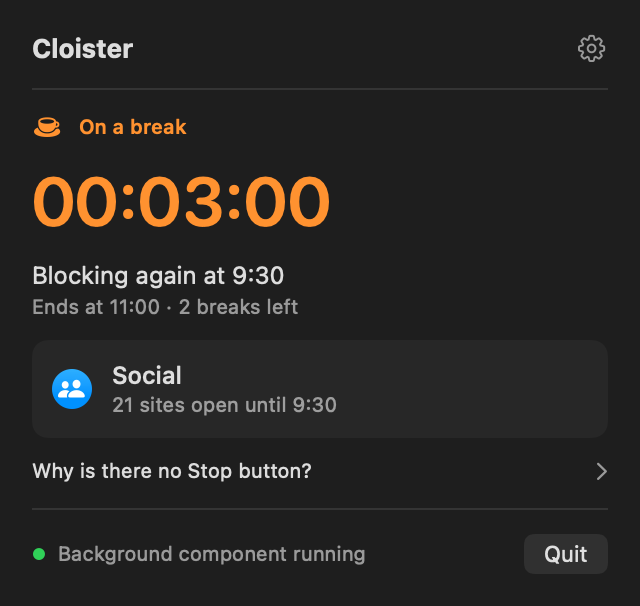
During the session, the countdown in the menu counts to the next change: to the break while the sites are blocked, and to the end of the break while they are open. The menu bar shows a cup during a break. While Cloister is running, a notice comes when a break starts and a minute before it ends; Settings → General → Notifications → During a break turns it off.
Breaks on a schedule
A schedule starts a session on its own, at the same time each week, even with Cloister closed. Since version 1.0.4 it can take breaks too.
- In Cloister’s Settings, under Schedules, press +. Name the schedule, tick its lists, choose the days, and set when it starts and ends.
- Under Breaks, click 25 + 5 or 50 + 10. They are offered when the window has room for them.
- Press Add schedule. The line under its name ends with “· breaks”, and the menu shows its next run “with breaks”.
- If your Mac is asleep or off at 09:00, Cloister starts when it wakes and blocks the rest of the window. It never runs past 11:00. Breaks keep their times, and any already due are skipped.
- Once a session starts, pausing or deleting the schedule will not end it — Cloister has no way to end a session early.
Breaks keep the window’s clock times. A 09:00–11:00 schedule with 25 + 5 breaks at 09:25, 09:55 and 10:25, every day it runs. If your Mac is asleep at 09:00, the schedule starts when it wakes, and only the breaks already due are skipped: wake at 09:40, and the breaks are at 09:55 and 10:25. A break already under way is skipped, not shortened: wake at 09:27, during the first one, and the sites stay blocked until 09:55.
What a break can’t do
- In the app, a break can’t be skipped, moved, taken early or made longer, and the session still can’t be stopped. Choose the rhythm before you start.
- The Shortcuts action starts sessions without breaks. Breaks come from the menu bar or from a schedule.
- A break opens every site on the session’s lists, not only the one you wanted. Lists are blocked and opened together.
When a break ends
Cloister closes the connections opened during the break, so a reload or a click is blocked like any other, including in tabs that were already open. A few things can keep working for a while, such as a video that is already playing, a browser that looks names up itself, or, if Cloister’s menu says another app manages this Mac’s firewall, the tabs opened during the break. Safari with iCloud Private Relay needs Cloister’s network filter on, as it does for blocking. The FAQ lists them: “What happens to tabs I opened during a break?”
One way out is there by design. Switching Cloister off in Login Items during a break, or stopping it another way, keeps the sites open until it runs again. Outside a break, that doesn’t end the block: the blocking guide has what each usual attempt does to a running session.
Before you start one
Start with a short session, such as an hour at 25 + 5, and check that what you need still opens. A session can’t be ended early, so a site you block by mistake stays blocked until it ends, breaks aside. Studying for exams? The study guide sets up a term of evenings on a schedule. For one site, the guides to blocking YouTube and Reddit have its list.
Try Cloister on your own Mac
The download is the whole app, with a 14-day trial and nothing withheld. If you buy it and it isn’t for you, there is a 30-day money-back guarantee.
Version 1.0.5 · macOS 15 or later


A separate app · free to download, blocking needs Cloister Pro
How this page was made
The steps follow Cloister for Mac as it ships, version 1.0.5, in the app’s own words, and the break times are worked out from the rule the app uses. If anything here is wrong or out of date, write to support@getcloister.app and it will be corrected.