A distraction blocker you can't talk yourself out of.
Cloister is a website blocker for Mac. Choose the sites that distract you most and how long to focus, and they won't load in Safari, Chrome or Firefox until the time is up. A running session cannot be cancelled. Not by quitting Cloister, not by moving the clock, not by restarting your Mac.
Version 1.0.5 · one-time purchase · 14-day trial with nothing withheld
- macOS 15 Sequoia or later
- Apple Silicon and Intel
- Signed and notarized by Apple
- No account, no telemetry
- 30-day money-back guarantee
Now on iPhone and iPad
Cloister: App & Site Blocker
Block the apps and sites that pull you away, on a schedule or when you tap Start. A strict block has no exit inside Cloister, though iOS keeps ways out that no app can remove.


A separate app · free to download, blocking needs Cloister Pro · iOS and iPadOS 26 or later · optimized for iPhone Duo
More about the iPhone and iPad app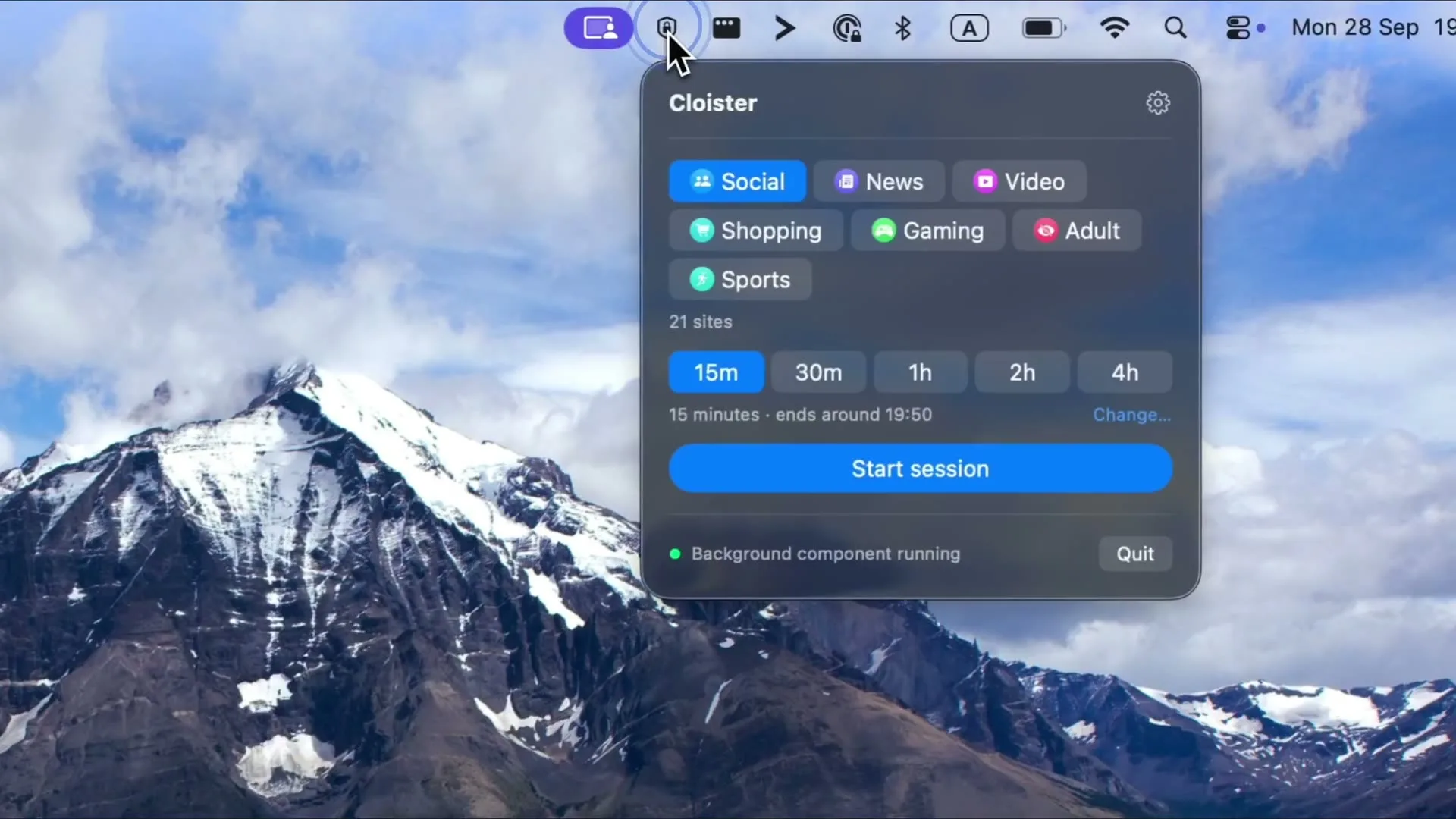
You can't turn it off until the timer ends
Once a session starts, the sites on its lists stay blocked until the timer runs out. Changing your mind twenty minutes in, when your reasons stop sounding good, changes nothing.
01:24:00
Started by “Mornings”
Why is there no Stop button?
You start a session
Built in Swift and SwiftUI, Cloister lives in the menu bar: pick the lists to block and how long, and press Start. Shortcuts and Spotlight can start one too. Sessions are capped at 24 hours, so a mistyped duration cannot cost you a week.
- Ready-made lists
- Your own lists
- 1 minute to 24 hours
- Recurring schedules
- Shortcuts and Spotlight
- Lives in the menu bar
You change your mind
There is no cancel button. Ending early isn’t a feature someone turned off — it was never built.
- No Stop button
- No hidden setting
- No back door
- No dialog to click past
- Support can’t end it either
You try to stop it
Every one of these was tried in the middle of a session on a MacBook Pro (M1 Pro) running macOS Tahoe 26, in September and October 2026, and the block held. Remove the block by hand and it’s back within seconds. One exception, by design: during a planned break, switching Cloister off in Login Items, or stopping it another way, keeps the sites open until it runs again.
- Quit Cloister
- Force-quit it
- Remove the block by hand
- Tamper with its saved session
- Move the clock forward 30 days
- Restart the Mac
You try to go around it
Cloister blocks sites for the whole Mac rather than inside one browser, with no browser extension to remove. There’s no account to sign out of and nothing on another device that can switch it off. There are a few exceptions, like Safari with iCloud Private Relay turned on, and the FAQ explains each one.
- Another browser
- No browser extension to remove
- Signing out
- Another device
Time’s up
The sites come back on their own when the timer ends. And if something goes badly wrong, there is a way out through Recovery mode — ask and we send you the steps, because software you cannot remove from your own Mac is not worth trusting.
- Ends on time
- Even with the app closed
- Recovery mode, on request
“Mornings” is over
now
No longer blocking 21 sites
Planned breaks that end on time
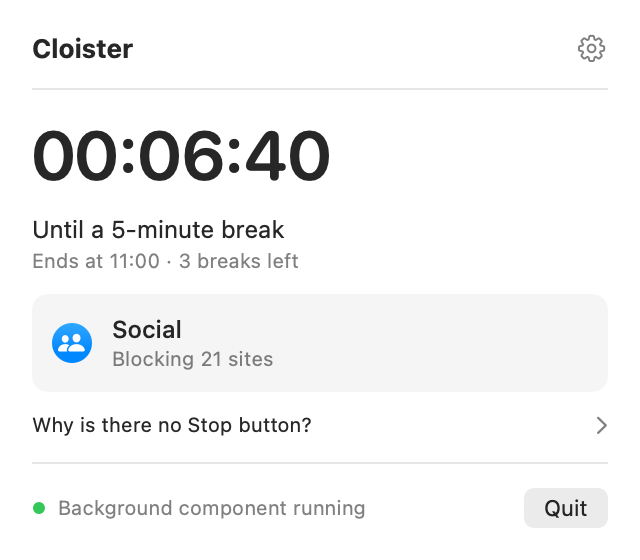
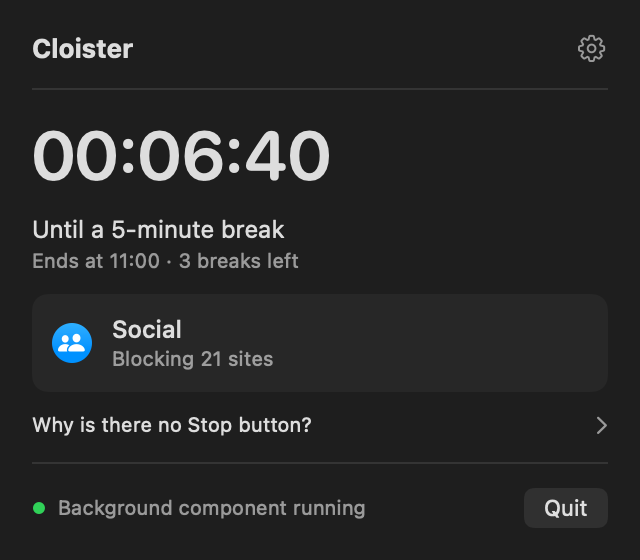
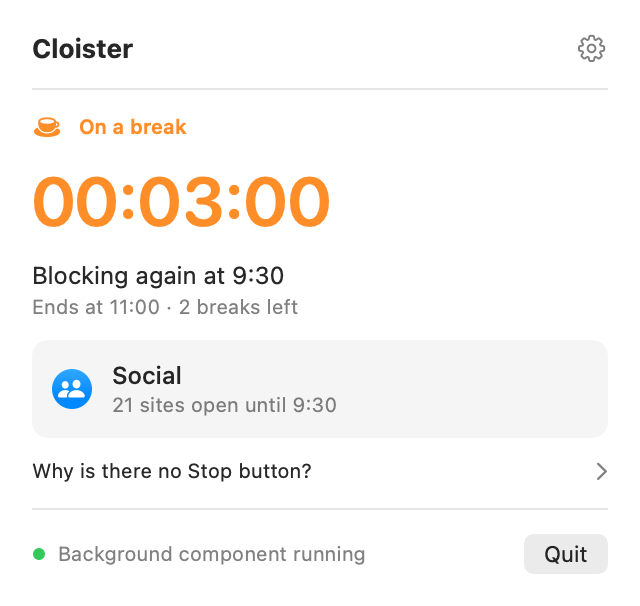
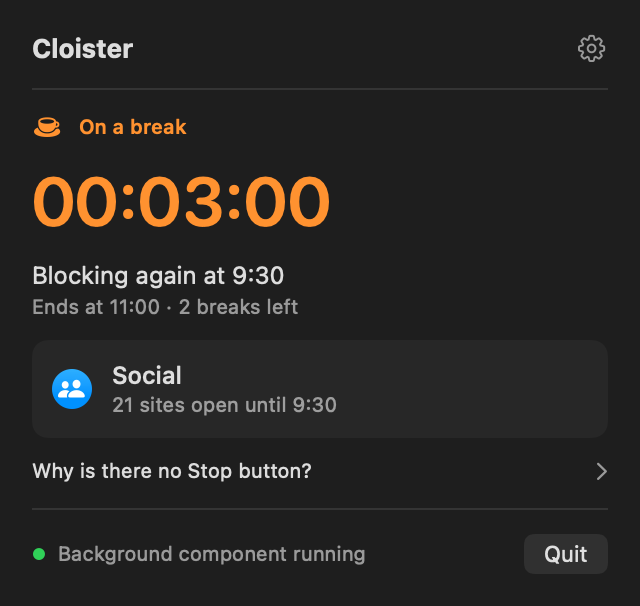
Choose 25 + 5 or 50 + 10 before you start, and the session takes its breaks by itself. During a break the sites on your list open. When it ends, they’re blocked again, on their own.
Set before Start, fixed after it
In the app, a break can’t be skipped, moved, taken early or made longer, and the session still can’t be stopped. The confirmation says so before you commit: “The breaks happen on their own, and can’t be moved or skipped.”
Inside the session, not added to it
Two hours with breaks still ends two hours after Start. A session never ends on a break: the last one is followed by at least as much blocked time as it lasted.
What a break opened, its end closes
When a break ends, Cloister closes the connections opened during it, so a reload or a click is blocked like any other. A few can stay open, such as a video that is already playing or a browser using its own secure DNS. The FAQ lists them.
The menu bar shows a cup during a break, and while Cloister is running, a notice comes when it starts and a minute before it ends. Schedules can have breaks too, at the same clock times each day they run. The Shortcuts action starts sessions without them. The breaks guide shows when they fall.
- If your Mac is asleep or off at 09:00, Cloister starts when it wakes and blocks the rest of the window. It never runs past 11:00.
- Once a session starts, pausing or deleting the schedule will not end it — Cloister has no way to end a session early.
Weekly schedules that hold
Set the hours that belong to your work or study and let them repeat, so the decision is made before you are awake enough to argue with it. A schedule opens a session like any other — and it does not negotiate either.
Starts late, never ends late
If your Mac is asleep or off when a schedule is due, the block starts as soon as it wakes and covers what is left of the window. It never runs past the end.
Tomorrow is editable. Today is not.
Change or delete a schedule whenever you like. A session it has already started carries on to its end regardless.
Five minutes’ warning
Schedules run in the background, even with Cloister closed, and a warning appears five minutes before one starts.
Start it from Shortcuts or Spotlight
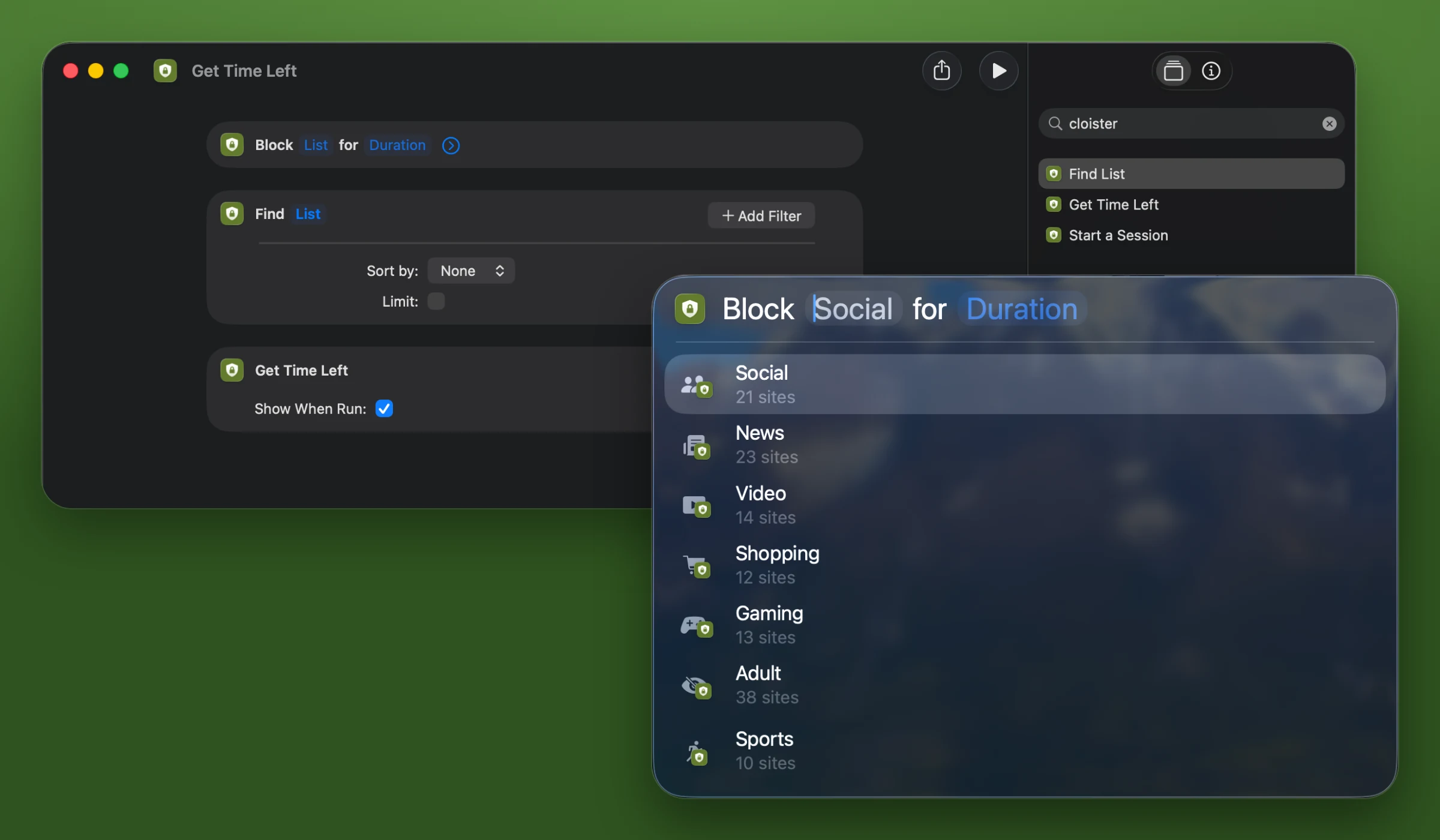
Cloister's actions sit in the Shortcuts app and in Spotlight, so a session can start in a few keystrokes, or as one step of a bigger shortcut. They only go one way.
Start a Session
Blocks a list for 15 minutes to 4 hours, from a shortcut or from Spotlight. It asks before it starts, unless you switch that off in the action.
Get Time Left
Says how long the running session has left, and hands the minutes to the next action. It changes nothing.
Nothing there can stop it
No action ends a session or shortens one. For another length, or a block that repeats, use the menu bar or a schedule.
Study sessions you can't talk yourself out of
Exam season is won in the hours you actually sit with the material. Block the sites that eat those hours, and the quick look at 1 a.m. stops being a decision you have to win.
Plan exam season, step by step- Exam eveningsEvery day · 19:00 · 3 hoursNext: today at 19:00·Social + News + VideoEdit
- BedtimeEvery day · 00:00 · 7 hoursNext: tomorrow at 00:00·Social + VideoEdit
- LecturesWeekdays · 09:00 · 3 hoursNext: tomorrow at 09:00·SocialEdit
- LibraryWeekdays · 14:00 · 3 hoursNext: today at 14:00·VideoEdit
A study plan that holds
Schedule a block for every evening of exam season. Each one opens on its own and, once it starts, runs to its end like any other session.
A bedtime for the internet
Set the sites that keep you up to close at midnight, every night, so one more video does not turn into three.
A list for each part of the day
Social feeds during lectures, video in the library: keep separate lists, and give each schedule the one it needs.
Cloister is for holding yourself to your own plan, on your own Mac — not for supervising someone else's.
No analytics or crash reporter in the app. No account.
A list of the sites you can't stay away from is as personal as a browsing history. Cloister keeps that list stored locally on your Mac and never measures what you do with it: no usage tracking, no crash reporter, and no sign-up.
You don't have to take our word for it.
Because Cloister is closed source, you can't inspect the code directly. So inspect its behaviour instead: point Little Snitch at it and see how quiet it stays.
Pay once. No subscription.
For Cloister on the Mac. The tiers differ in how many Macs they cover and how long new versions keep arriving.
Nothing renews by itself
You pay once, for a window of updates. Nothing recurring, nothing to cancel.
Nothing expires
When your updates end, the version you already have keeps running indefinitely.
No lock-outs
A failed payment can never lift a block you asked for, or end a session early.
One limit worth knowing before you buy.
Safari with iCloud Private Relay switched on gets past the block until Cloister’s network filter is on. The filter blocks it too, once you allow it in System Settings and turn it on in Cloister.
Sold through Paddle. By buying you agree to the Terms and licence.
- Covers one Mac
- One year of updates
- Sessions that cannot be cancelled
- Up to 24 hours per session
- Recurring schedules
- Offline licence — no account, no sign-in
- A 14-day trial with nothing withheld
- 30-day money-back guarantee
Sold through Paddle. By buying you agree to the Terms and licence.
- Covers two Macs
- One year of updates
- Sessions that cannot be cancelled
- Up to 24 hours per session
- Recurring schedules
- Offline licence — no account, no sign-in
- A 14-day trial with nothing withheld
- 30-day money-back guarantee
Sold through Paddle. By buying you agree to the Terms and licence.
- Covers two Macs
- Updates for the life of the product
- Sessions that cannot be cancelled
- Up to 24 hours per session
- Recurring schedules
- Offline licence — no account, no sign-in
- A 14-day trial with nothing withheld
- 30-day money-back guarantee
Prices include VAT where it applies.
Every licence is guaranteed security fixes for five years from the day you buy.
macOS 15 Sequoia or later · Apple Silicon and Intel · signed and notarized by Apple
Cloister for iPhone and iPad is sold separately in the App Store.
Questions worth asking first
Once a session starts, Cloister deliberately refuses to let you stop it. Read the limits before you install it, not after.
Can I stop a session early?
No, and not as a matter of policy — as a matter of what exists. Cloister has no way to end a session: no button, no hidden setting, nothing to find in a settings pane, nothing to hold a modifier key for.
- Sessions are capped at 24 hours of your Mac being on or asleep.
- A shutdown pauses them after its first ten minutes.
- Start with five minutes rather than five hours while you get a feel for it.
What if I block something I need?
A site on a running session’s list stays blocked until the session ends. The sites a session blocks are fixed when it starts, so editing a list afterwards changes the next session, not the one running.
Read the list before you press Start, and start short: a session can be as short as a minute, and none runs longer than 24 hours.
Can I end a break early, or skip one?
No. Breaks are set before Start, like the session’s length, and nothing about a session changes after Start.
- Two choices: a 5-minute break every 25 minutes, or 10 minutes every 50. Each needs room: 25 + 5 from a 35-minute session, 50 + 10 from 70 minutes.
- Breaks don’t make a session longer. They are inside its length, and a session never ends on a break.
- Schedules can have breaks too, at the same clock times each day they run. If a schedule starts late, after your Mac wakes, a break already due is skipped, not moved or shortened. The Shortcuts action starts sessions without them.
What happens to tabs I opened during a break?
They are blocked again when the break ends, including tabs that were already open: Cloister closes their connections, so a reload or a click is blocked like any other. Safari with iCloud Private Relay needs the network filter on, as it does for blocking. What can keep working:
- A video that is already playing may play to its end. Nothing new loads.
- A browser with its own secure DNS, such as Chrome with secure DNS or Firefox with DNS over HTTPS, or a proxy or VPN, may keep a break’s tab working for a while, as long as the browser keeps that connection open. Anything new is blocked as it would be outside a break.
- If Cloister’s menu says another app manages this Mac’s firewall (a VPN’s kill switch can), tabs opened during a break may keep working: close them when it ends. The block itself works as always.
Two side effects:
- Other sites on the same servers are cut once too. At a break’s end, their connections are reset and can’t reopen for about 15 seconds: with YouTube on a list, that may include Gmail and Docs. Devices sharing the Mac’s connection, such as virtual machines, are cut the same way.
- During each break, Cloister looks up every site on your list, visited or not, with your Mac’s own DNS, so that it can close their connections. Your DNS provider sees those names. Nothing is sent to us.
Can it be bypassed?
Yes, and you should know how before you buy. What gets past it:
- Apps that connect their own way. An app that finds its servers by itself, or connects straight to an address, is not blocked.
- Safari with iCloud Private Relay switched on gets past the block until Cloister’s network filter is on. The filter blocks Safari too, once you allow it in System Settings and turn it on in Cloister: in Settings → Coverage, or from the menu if it says “Safari isn’t blocked”.
- Switching Cloister off during a break. Switched off in Login Items, which takes an admin password, it leaves the sites open until it is switched back on, and Cloister’s menu says the break is still open. Stopped another way, it leaves them open until the Mac restarts. Outside a break, the block stays either way.
- Recovery mode. Anyone who starts the Mac in it can remove the block, always.
Tested, and didn’t get past it:
- Encrypted DNS in Chrome and Firefox: still blocked. Tested 20 September 2026 on macOS 26: Chrome set to Cloudflare, Firefox at Increased or Max Protection.
- A VPN app: still blocked in Safari, Chrome and Firefox, switched on before a session or during one. Tested 12 October 2026.
The honest claim is that Cloister makes giving up deliberate and inconvenient, not impossible — which is the only thing a commitment device can truthfully promise, because the person being blocked is the person who asked.
Does it block apps?
On the Mac, not yet: Cloister for Mac blocks websites only. A site on your list will not load in your browsers, but apps still open as normal, so Cloister does not stop Slack, Steam or Mail from launching.
Blocking apps is planned for version 2. Cloister for iPhone and iPad does block apps (see the last question).
What about scheduled blocks?
Cloister can open sessions on a repeating schedule — weekday mornings, every evening, whatever shape your work or study has.
- A schedule is not a softer session: once one opens, it holds like any other, which is the point.
- Editing tomorrow’s schedule is always allowed; editing the session running right now is not.
Can I start a session from Shortcuts or Spotlight?
Yes. Cloister adds three actions to the Shortcuts app:
- Start a Session, which blocks a list for 15 minutes to 4 hours. It asks before it starts unless you switch that off in the action.
- Get Time Left.
- Find Block Lists, which hands a list to the next action.
Start a Session and Get Time Left also run from Spotlight. None of them can end a session or shorten one. For a different length, or a block that repeats, use the menu bar or a schedule.
Is this a subscription?
Not for the Mac. You pay once, and what the money buys is a window of updates — a year, or the life of the product.
- When that window closes, nothing is taken away: the last version you received keeps working indefinitely, and no session is ever cut short because a card failed.
- For the versions that come after, you can buy another year at the price of a new licence, whenever you like.
- Nothing renews by itself and nothing is charged to a card you left with us, because we do not keep one.
- No account. After a one-time activation on each Mac the licence is checked offline, so Cloister works with the network off, and there is no account to create.
Cloister for iPhone and iPad is sold differently, through the App Store (see the last question).
Can I get my money back?
Yes — within 30 days of buying, for any reason, by writing to us. And with the 14-day trial first, you never have to pay to find out whether an uncancellable block suits you.
A refund never ends a session that is running. For a purchase in the App Store, ask Apple.
Who am I buying from?
From Paddle, our reseller, which handles the payment, the invoice and the tax — Paddle is the name on your card statement. Cloister itself, its licence and its support come from Vitalii Kizlov, the one-person business in Poland that makes it.
Buying for a company? Enter your VAT number at checkout. On iPhone and iPad, you buy Cloister Pro from Apple in the App Store.
How many Macs does a licence cover?
One or two, depending on which you buy.
- Activated once per Mac. The first time you enter your licence on a Mac, Cloister activates it once over the internet: it sends your licence key, a one-way hash of the Mac’s hardware identifier and the Mac’s model name, and gets back a licence signed for that Mac.
- Then offline. After that it contacts us about the licence again only if you unlink that Mac, renew or press Refresh licence, and works with the network off.
- Moving to a new Mac takes a click: unlink the old one in Cloister’s settings, or, if the old Mac is gone, from the new one when Cloister lists your Macs.
Does Cloister collect any data?
The app, no: no analytics, no crash reporter, no telemetry. Your blocklists and schedules never leave your Mac, and blocking happens on the Mac itself.
The business keeps your email, and a hash and the model name of each Mac you activate, because that is what a licence needs, and Paddle holds the payment details. The privacy page lists all of it — and Little Snitch will show you the app’s side: one activation per Mac, then only the check for updates — plus unlinking, renewing or refreshing the licence, when you do them.
How do I uninstall it?
In Cloister’s Settings → General, press Uninstall Cloister…, which removes its background item and its network filter, then moves the app to the Trash.
- It won’t run while a session is going: it says when the session ends, and you try again then.
- macOS asks for Touch ID or a password to remove the filter.
- Your trial record stays, so a reinstall carries on from it, and so do your lists and settings.
- If you deleted Cloister in Finder instead, download it again, open it, and uninstall it from there.
What do I need to run it?
For Cloister for Mac: a Mac with macOS 15 Sequoia or later, on Apple Silicon or Intel.
- A signed, notarized download straight from this site — not a Mac App Store app, and it can’t be: App Store apps aren’t allowed the system-wide access Cloister needs to block websites in Safari, Chrome and Firefox.
- One approval: you will be asked to approve a background item in System Settings the first time you open it.
The iPhone and iPad app is separate (see the next question), and there is no Windows or Android version.
Is there an iPhone or iPad version?
Yes: Cloister for iPhone and iPad is on the App Store, for iOS and iPadOS 26 or later. Since version 1.2 it is optimized for iPhone Duo, on both displays, closed or open.
- A separate app and a separate purchase: free to download, with Cloister Pro as a yearly or monthly subscription or a one-time Lifetime purchase, billed and refunded by Apple.
- It blocks apps, app categories and websites through Apple’s Screen Time, on a schedule or when you start it.
- A Strict block has no way out inside the app, but iOS keeps ways out that no app can remove; turning off Cloister’s Screen Time access in Settings is one, and it ends its blocks.
The other answers here are about Cloister for Mac; section 14 of the Terms covers the iPhone and iPad app.